How to transfer your games to the Nintendo Switch 2
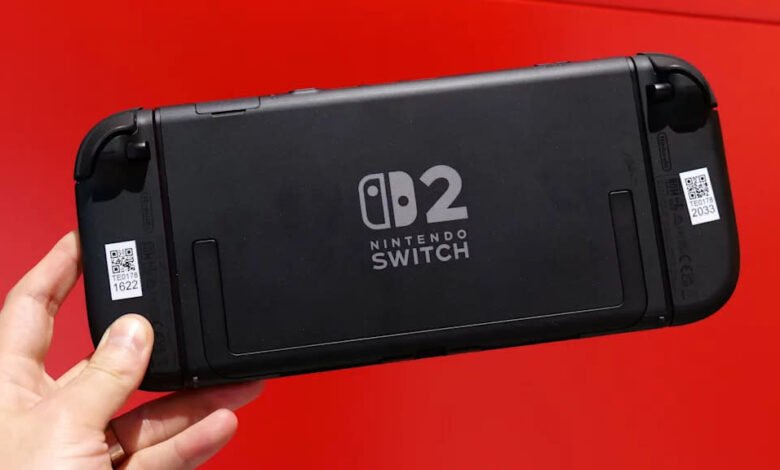
Upgrading to the Switch 2 is a big step forward, thanks to the larger screen, new features, and improved performance. But moving to a new console naturally raises questions about what happens to all your games and save data on the game you already have. Fortunately, Nintendo has built a straightforward system transfer process that lets you transfer your account, digital purchases, save files, and other key data from the original Switch to the Switch 2. If you prepare in advance, you can get back to playing your favorite games on the new hardware in minutes.
We’ll walk you through everything you need to know, including transfers, how to start the process, and what to check once you’re set up.
Before moving: a quick checklist
Performing these steps first will save time later:
-
Charge your original Switch and Switch 2, and keep them close together.
-
Connect to a stable Wi-Fi connection, as this is required to verify your Nintendo Account and manage redownloads.
-
Update your original adapter by installing the latest system software so that the transfer process can run without interruption.
-
Make sure your Nintendo Account is linked, and that each user you want to transfer is linked to a Nintendo Account.
-
Most Switch titles work on Switch 2, but a few may have issues, so it’s worth checking Nintendo’s compatibility list beforehand.
-
Back up screenshots and videos if necessary. They need to be passed around, but it never hurts to have your own copy.
How to start transferring data from the old Switch to Switch 2
With the original Nintendo Switch in hand, head over to System settingsHe chooses Users Then select Transfer your user and save data. Choose the user profile you want to transfer, confirm your Nintendo Account information and follow the on-screen prompts.
Turn on your Switch 2 and perform the initial setup. When the console asks if you want to transfer data from another system, select Start the system transfer. Make sure both consoles are connected to the same Wi-Fi network and remain powered on during the process.
Once the Switch 2 detects your original console, it will guide you through pairing the transfer systems. After the connection is established, the original adapter will start sending your user information and saving your data and settings.
When the transfer is complete, your new console will automatically sign in with your Nintendo Account. Your digital games will appear in Re-download section of the eShop so you can pull them over to your Switch 2 as needed.
What to do after the transfer process is complete
Once everything is transferred to the Switch 2, there are a few final steps that help complete the process. You can re-download your digital games from the online store and start reinstalling your favorite games. Any Joy-Con or Bluetooth controllers or accessories you used with your original console will need to pair again (provided they’re Switch 2-compatible accessories), which only takes a minute. It’s also a good time to update your games to their latest versions and restore any parental controls or family group settings you had before.
When you’re confident that all your data has been transferred and everything is working as expected, you can then decide whether you want to keep your old console, hand it in, or perform a factory reset if you plan to sell it.
What data is transferred to the adapter 2
Nintendo System Transfer transfers everything associated with your Nintendo Account, including purchased digital games, save data, user profiles, parental controls, system settings, screenshots, and video captures.
Your Nintendo Switch Online membership also transfers, and you’ll be able to instantly re-download your digital games to your Switch 2 once the transfer is complete. Actual Switch game cards also work on the new console, although some titles may require patches or updates for best performance. Nintendo has noted that a small number of older games may have temporary compatibility issues, but these issues are under review.
What data is not transferred automatically
Some settings won’t migrate on their own, so you may need to handle them manually once you’ve set up the Switch 2. Bluetooth pairing of controllers or headsets will need to be reconnected, since these hardware links remain linked to the original console. Your Wi-Fi passwords also won’t transfer, so you’ll have to log in to your home network again.
Some game-specific preferences, as well as language or region settings, may require another quick tweak on the Switch 2, but they’re easy to reconfigure and only take a few moments.
Troubleshooting and other things to consider
If you encounter problems while leveling, there are some common scenarios worth keeping in mind. Some older games may experience temporary compatibility issues on the new console, so if the game is behaving unexpectedly, check Nintendo’s updated compatibility list for known issues.
You may also notice slower download speeds as the Switch 2 queues your entire library after the transfer. It’s helpful to prioritize which games you want to play first so you can download them before the rest. Storage can also play a role. If you’re using a microSD card, wait until the system transfer is complete before inserting it into the new console, as the Switch 2 may need to reformat the card.
Finally, don’t reset the old switch right away. Its continued operation and accessibility ensures that you can be sure that all your saves and data are transferred safely.
Don’t miss more hot News like this! Click here to discover the latest in Technology news!
2025-12-25 13:00:00